LG TV repair knowledge is essential for quickly resolving issues that disrupt your viewing experience, especially since television sets have become an integral part of our daily lives, offering entertainment, news, and educational content. Among the various brands available, LG TVs are known for their cutting-edge technology and sleek designs. However, like any electronic device, they can encounter problems. Understanding how to diagnose and fix these common issues can save time, money, and frustration.
In this article, we will explore some of the most frequent issues LG TV users face, ranging from picture quality problems to connectivity issues. By breaking down these problems into manageable sections, we aim to equip you with the knowledge necessary to troubleshoot effectively. Whether you’re experiencing a blank screen, sound malfunctions, or difficulties with smart features, our comprehensive guide will help you identify the root cause and provide actionable solutions.
Before diving into repairs, it’s crucial to ensure that basic troubleshooting steps have been taken. This includes checking power connections, resetting the device, and confirming settings are correctly configured. For users who may not be tech-savvy, the thought of fixing a television can be daunting. However, with clear instructions and diagnostics, you can handle most common issues confidently and efficiently.
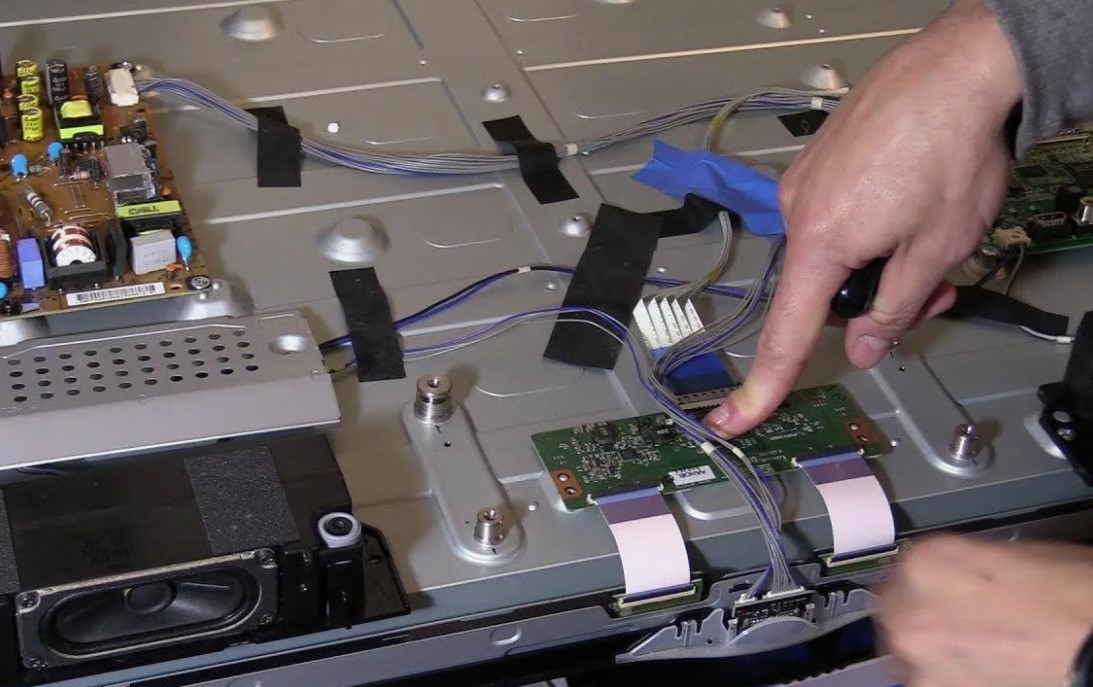
LG TV Repair: How to Diagnose and Fix the Most Common Problems
When facing issues with your LG television, it’s essential to identify the problem accurately before attempting a repair. Below are some of the most common issues and their potential solutions.
No Power
If your LG TV won’t turn on, start by checking the power supply. Ensure that the power cord is securely plugged into both the TV and the electrical outlet. Try using a different outlet or power strip to rule out a faulty power source. If the TV still doesn’t power on, try performing a soft reset by unplugging the TV for at least 60 seconds, then plugging it back in. If the TV remains unresponsive, this could indicate a failure in the internal power supply or a fault in the mainboard.
Poor Picture Quality
For issues such as pixelation, fuzzy images, or dark screens, first check the input source. Ensure that the connected device (cable box, gaming console, etc.) is functioning correctly. Adjust the picture settings in the TV menu, including brightness, contrast, and sharpness, to enhance the quality. If these adjustments don’t resolve the issue, inspect the HDMI cables for damage or try replacing them. In some instances, poor picture quality could signal a malfunction in the display panel, requiring professional service.
By following these diagnostic steps, you can effectively troubleshoot and address common problems with your LG TV, ensuring optimal performance and longevity.
Identifying Power Issues in LG TVs
Power issues are among the most common problems faced by LG TV users. Identifying the root cause of these issues can help you address them effectively. Here are some steps to diagnose power-related problems in your LG television.
First, check if the television is plugged in properly. Ensure that the power cord is securely connected to both the TV and the wall outlet. A loose connection can prevent the TV from receiving power.
Next, test the wall outlet. Plug another device into the same outlet to confirm it is functioning. If the outlet is dead, consider checking your home’s circuit breaker or trying a different outlet.
If the power status indicator on the TV is off or not lit, try a power reset. Unplug the TV from the wall for at least 60 seconds. After waiting, plug it back in and try turning it on.
If the power indicator is lit but the TV does not turn on, it may be necessary to perform a more detailed troubleshooting. Below is a table outlining possible issues and their corresponding solutions:
| Issue | Possible Causes | Solutions |
|---|---|---|
| No power indicator | Power cord issue, outlet failure | Check connections, try a different outlet. |
| Power indicator on but no display | Internal component failure | Try a hard reset; if unsuccessful, seek professional repair. |
| TV turns off abruptly | Overheating, firmware issues | Ensure proper ventilation; check for software updates. |
| Remote control issues | Dead batteries, signal interference | Replace batteries; check for obstructions between remote and TV. |
Following these steps can help you accurately identify power issues with your LG TV. If none of these solutions resolve the problem, consider contacting LG customer support or a qualified technician for further assistance.
Troubleshooting No Picture Problems
If your LG TV is powered on but there is no picture displayed on the screen, you can follow these steps to troubleshoot the issue effectively.
First, check the power status of the television. Ensure that the power indicator light is on. If the light is blinking or off, the TV may not be receiving power, or there could be a hardware issue. Try unplugging the TV from the power outlet for a few minutes and then plug it back in to reset the system.
Next, inspect the connections for any external devices. Ensure that HDMI or AV cables are securely connected to both the TV and the device. If using an HDMI cable, try a different port on the TV or replace the cable to rule out a faulty connection.
Additionally, select the correct input source. Use the remote control to cycle through the input options, as the TV may be set to the wrong source. Check if the external device is powered on and functioning properly by connecting it to a different display, if possible.
If the screen remains blank, it may be a backlight issue. Shine a flashlight at an angle against the screen. If you see faint images, this suggests the backlight is malfunctioning. In such cases, further diagnostics or professional repair may be required.
Another potential cause could be the TV’s settings. Access the menu using the remote control. If the menu appears without issue, the problem likely lies with the external device. If the menu doesn’t display, it may indicate a deeper hardware problem within the TV.
If you have recently updated the firmware, it could lead to compatibility issues. Consider performing a factory reset to restore the TV to its original settings. Be cautious, as this will erase customized settings.
In situations where none of the above solutions work, the problem may stem from internal components, such as the main board or power supply. If you are not experienced with electronics, it is advisable to consult a professional technician for further diagnosis and repair.
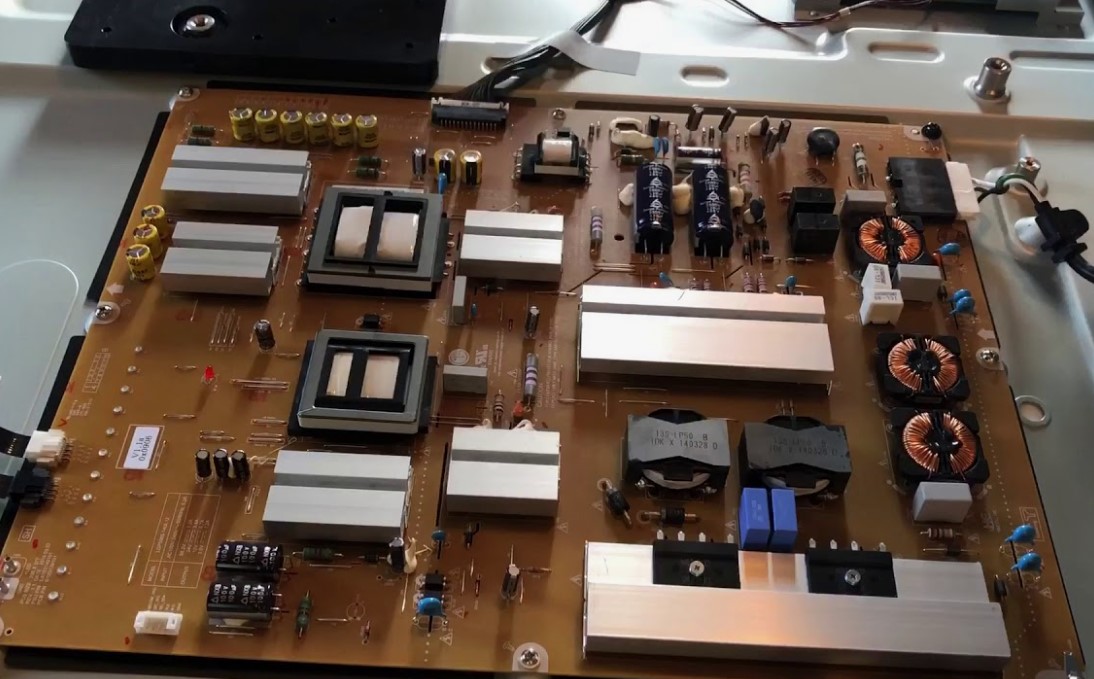
Resolving No Sound Issues on LG TVs
No sound from your LG TV can be frustrating, but several troubleshooting steps can help identify and resolve the issue. Start by checking the volume settings to ensure that the TV is not muted or set to a very low level. Use the remote control to increase the volume and look for any on-screen indicators that may inform you about the mute status.
If volume settings are correct, verify that the audio output is set to the correct source. Navigate to the audio settings in the TV menu and ensure that the audio output is configured properly, especially if you are using external audio devices such as soundbars or home theater systems. Make sure the TV is set to output sound through the selected device.
Next, inspect the connections between your TV and any external devices. Ensure that all cables are securely connected and that there are no visible damages or loose connections. If you’re using HDMI, try a different HDMI port or cable to rule out a defective connection. For older devices, check the audio cables to make sure they are properly plugged in.
Sometimes, software issues can lead to audio problems. Check for software updates in the TV settings menu. Installing the latest firmware can often resolve bugs that may be affecting sound output. After updating, restart your TV to ensure all changes take effect.
If these steps do not solve the problem, perform a factory reset on your LG TV. This action will restore all settings to their original state and can often fix deeper issues. Refer to your TV’s user manual for instructions on how to perform a factory reset.
If you’re still experiencing no sound after trying all the above methods, it may indicate a hardware issue. In this case, contacting LG customer support or a professional repair technician is advisable to diagnose and fix any potential internal faults.
Fixing Internet Connectivity Problems
Internet connectivity issues on LG TVs can arise from various factors, including network settings, router problems, or even the TV’s internal software. To resolve these issues, it is essential to systematically diagnose the problem.
Step 1: Check Your Network Connection
Begin by confirming that your Wi-Fi network is functioning correctly. Ensure that other devices, such as smartphones or laptops, can connect to the same network. If they’re having issues as well, restart your router. This often resolves minor connectivity problems.
Next, on your LG TV, navigate to the Settings menu. Select ‘Network’ and then ‘Network Status’ to view the connection status. If the TV shows that it is not connected, try reconnecting by selecting ‘Wi-Fi Connection’ or ‘Wired Connection,’ depending on your setup.
Step 2: Adjust Network Settings
If your TV still cannot connect, consider adjusting the network settings. You can try forgetting the network and reconnecting. To do this, go to ‘Settings’ > ‘Network’ > ‘Wi-Fi Connection.’ Select your network and choose ‘Forget.’ Then, reconnect by entering your Wi-Fi password.
If you’re using a static IP address, ensure that the settings match your router’s configuration. Alternatively, switching to dynamic IP settings can also solve connectivity issues. Go to ‘Settings’ > ‘Network’ > ‘Wired’ or ‘Wi-Fi’ > ‘Advanced Settings’ and choose ‘Dynamic IP.’
In cases where your internet connection is too slow or the signal is weak, consider moving your router closer to the TV or using a Wi-Fi extender. If possible, a wired connection via Ethernet can provide a more stable internet connection for your LG TV.
Finally, check for any firmware updates available for your LG TV. Navigate to ‘Settings’ > ‘About this TV’ > ‘Software Update.’ An outdated software version may lead to compatibility issues with the network.
Addressing HDMI Connection Failures
HDMI connection failures can often lead to frustrating viewing experiences, but diagnosing and fixing these issues can be straightforward. First, ensure that both the TV and the HDMI device (such as a console, computer, or Blu-ray player) are powered on. Check that the HDMI cable is securely connected at both ends, as loose connections can lead to signal loss.
If the problem persists, inspect the HDMI cable for any visible damage. Bends, frays, or cuts can compromise the cable’s performance. If you suspect damage, testing with a different HDMI cable can help determine if the original cable is the cause of the issue.
Checking TV Settings and Input Selection
Often, HDMI issues arise from incorrect input selection on the TV. Use the remote control to cycle through the input sources until you reach the correct HDMI port. If the display remains dark or shows a «No Signal» message, it may be necessary to reset the TV. Unplug the television from the power source, wait a minute, and plug it back in. This reset can help clear temporary glitches that may affect the HDMI connection.
Firmware Updates and Device Compatibility
Another common issue can be related to outdated firmware. Check if your TV requires a software update by navigating to the settings menu. Keeping the TV’s firmware up to date ensures compatibility with the latest HDMI devices and formats. Additionally, confirm that the connected device supports the HDMI version your TV requires. Mismatched HDMI versions may lead to connection failures, so consult the manuals of both devices for compatibility information.
Solving Remote Control Malfunctions
Remote control issues can be frustrating, as they often prevent you from accessing your LG TV’s features. Here are some common problems and their solutions.
| Problem | Solution |
|---|---|
| Remote does not work at all | Check the batteries. Replace them with fresh ones and ensure they are installed correctly. If the issue persists, try resetting the remote by removing the batteries and pressing all buttons for 10 seconds. |
| Remote controls TV intermittently | Make sure there are no obstructions between the remote and the TV. If possible, test the remote from different angles and distances. Clean the remote’s infrared emitter with a soft cloth to eliminate any dirt or residue. |
| Volume control not responding | Check if the TV is in the correct input mode. If the TV is connected to external devices, ensure those devices are functioning correctly. Also, test the volume control buttons individually to identify if specific buttons are unresponsive. |
| Buttons stuck or unresponsive | Inspect the remote for any physical damage or debris. If buttons are stuck, carefully use a soft brush or compressed air to clean around the buttons. If cleaning does not help, consider opening the remote to clean inside, but ensure you follow safety precautions. |
| Remote is not pairing with the TV | Try resetting the remote by removing the batteries and pressing any button for 5 seconds. Reinsert the batteries and attempt to pair again. Ensure the TV’s Bluetooth settings are enabled for smart remotes, if applicable. |
If problems persist after attempting these solutions, contacting LG customer support or visiting a certified repair service may be necessary.
Diagnosing Screen Flickering or Flashing
Screen flickering or flashing on your LG TV can be frustrating and disruptive while watching your favorite shows or movies. To diagnose the issue effectively, follow these steps.
First, check the connections. Loose or damaged HDMI or component cables can cause flickering. Ensure that all cables are securely connected to both the TV and the external device. If possible, try using a different cable to rule out a faulty connection.
Next, examine the external devices. If the flickering occurs only with a specific device, such as a cable box or gaming console, the problem may lie with that device rather than the TV itself. Restart the device to see if it resolves the issue, and consider testing it on a different display.
Another factor to consider is the TV’s settings. Navigate to the picture settings menu and check for features like «Motion Smoothing» or «Dynamic Contrast.» Disabling these options can sometimes reduce flickering. Additionally, ensure that the TV’s firmware is up to date, as manufacturers often release updates to fix known bugs.
If the flickering persists, attempt a factory reset of the TV. This process will restore all settings to their default state and can resolve software-related issues causing screen problems. Remember to back up any important settings or preferences before performing a reset.
Lastly, consider environmental factors. Fluorescent lighting or other electronic devices located near the TV can cause interference. Moving your TV away from such sources may help alleviate the flickering.
If none of these steps resolves the issue, it may be time to consult a professional technician. Persistent flickering can indicate hardware problems, such as issues with the display panel or internal components, that require specialized repair.
Dealing with Stuck or Dead Pixels
Stuck or dead pixels on an LG TV can be frustrating, affecting your viewing experience. Understanding the difference between the two types can help you determine the best approach for resolution.
Identifying Stuck vs. Dead Pixels
- Stuck Pixels: These pixels display a single color and do not change regardless of the video content. They may appear as a bright red, green, or blue dot on the screen.
- Dead Pixels: These pixels are completely inactive and show no color, appearing as black dots on the display.
Methods to Fix Stuck or Dead Pixels
Although dead pixels often require professional repair, there are several options you can try for stuck pixels:
- Pixel Fixing Software: Use specialized software that rapidly changes colors on the screen. This method can sometimes reactivate stuck pixels. Popular options include JScreenFix and UDPixel.
- Massage Technique: Gently massage the affected area with a soft cloth. Apply light pressure on the pixel for a few seconds while the screen displays different colors. This may help realign the pixel.
- Heat Method: Turn on the TV and place a heating pad over the affected area for a few minutes. The heat can help reactivate stuck pixels. Ensure that the heating pad is not too hot to avoid damaging the screen.
If these methods do not resolve the problem, it may be necessary to contact LG customer service for further assistance or consider professional servicing. Remember to check your warranty, as dead pixels might be covered in certain cases.
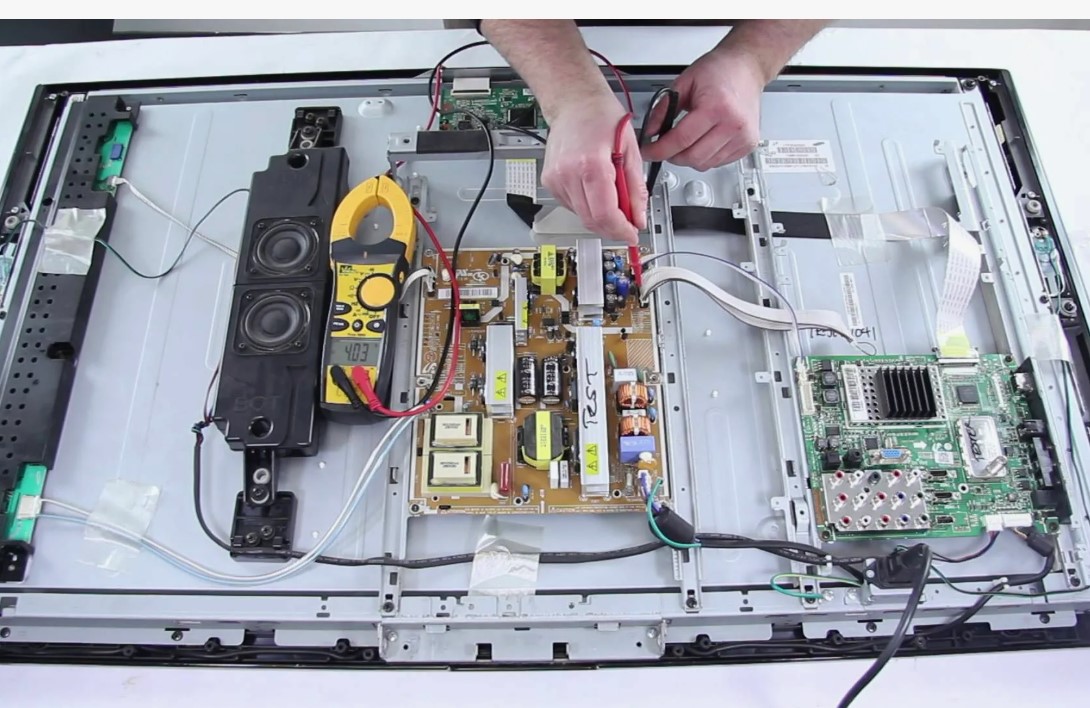
Correcting Color Distortion Issues
Color distortion in LG TVs can manifest as inaccurate hues, extreme brightness, or overall poor image quality. To effectively diagnose and correct these issues, follow these step-by-step instructions.
Step 1: Check the Source
Begin by assessing the input source. Color distortion can occur due to a faulty cable or poor-quality streaming service. Test different HDMI cables and ports to rule out connection issues. Additionally, switch to another device (e.g., a different Blu-ray player or gaming console) to see if the problem persists. If the distortion occurs with only one source, the issue may lie with that device rather than your TV.
Step 2: Adjust Picture Settings
Access the picture settings through the TV menu. Start by resetting the picture mode to ‘Standard’ or ‘User’ if you have made prior adjustments. Next, adjust the brightness, contrast, saturation, and sharpness settings to see if it alleviates the distortion. Pay attention to color temperature settings; choose ‘Warm’ or ‘Neutral’ for a more accurate color representation. If you suspect further issues, consider using the advanced settings to tweak individual RGB values, which can correct any color imbalance.
Resolving Software Update Errors
Software update errors can hinder the performance and functionality of your LG TV. Here are several steps to diagnose and resolve these issues effectively:
- Check Internet Connection:
- Ensure your TV is connected to the internet.
- Test the connection by streaming content or browsing the web on your TV.
- If the internet is down, reset your router or contact your service provider.
- Restart the TV:
- Power off your LG TV and unplug it from the wall.
- Wait for at least 30 seconds before plugging it back in and turning it on.
- Check for Updates Manually:
- Navigating to the settings menu, look for “About This TV” or “Software Update.”
- Select the option to check for updates manually to see if the error persists.
- Free Up Storage Space:
- Ensure there’s adequate storage available for the update files.
- Delete unnecessary apps or content if storage is full.
- Reset TV Settings:
- Navigate to the settings menu and find the “Reset to Initial Settings” option.
- Follow the prompts to reset your TV, which can help clear any software glitches.
- Install Updates via USB:
- Visit the LG support website and download the latest firmware for your TV model onto a USB drive.
- Plug the USB drive into the TV and follow the on-screen instructions to install the update.
- Contact Customer Support:
- If the problem persists, reach out to LG customer support for assistance.
- Provide them with details about the error message and steps already taken.
By carefully following these steps, you should be able to resolve most software update errors on your LG TV, ensuring it runs optimally and remains updated with the latest features and improvements.
Understanding Warranty Coverage for Repairs
When considering repairs for your LG TV, understanding the warranty coverage is essential. Warranties provide a safety net for consumers, protecting against defects in manufacturing and offering repairs or replacements at little to no cost. Here’s a breakdown of what to expect from warranty coverage.
Types of Warranty Coverage
- Standard Manufacturer’s Warranty: Typically covers defects in materials and workmanship for a period ranging from one to two years from the date of purchase. This warranty usually includes parts and labor.
- Extended Warranty: Can be purchased to extend coverage beyond the standard warranty period. Conditions vary widely based on the provider, so it’s essential to read the terms carefully.
- In-Home Service: Some warranties may include in-home service options, allowing a technician to visit your home for repairs, which can be more convenient.
What is Covered?
Coverage typically includes:
- Defects in manufacturing that affect performance.
- Failures related to the TV’s components, such as the screen, power supply, and internal circuitry.
- Malfunctions occurring under normal use as stipulated in the manufacturer’s guidelines.
However, warranties often do not cover:
- Physical damage (like cracks or water damage).
- Repairs needed due to misuse or improper installation.
- Consequential damages, such as loss of data or additional damages caused by the malfunction.
To ensure that you are making the most of your warranty, keep a copy of your purchase receipt and review the warranty terms outlined by LG. Understanding these details will help you navigate the repair process and avoid unexpected costs.
Q&A — LG TV repair:
What are the common issues with LG TVs that might require repair?
Common issues with LG TVs include problems with the screen such as flickering or black screens, sound problems where the audio may be muted or distorted, connectivity issues with Wi-Fi or HDMI inputs, software glitches that cause freezing or crashing, and remote control malfunctions. Each of these problems can stem from different causes, ranging from hardware failures to simple settings adjustments.
How can I diagnose a black screen issue on my LG TV?
If your LG TV displays a black screen, start by checking if the TV is on and whether the power indicator light is functioning. Try a different input source, like HDMI, to see if the issue persists. If the remote does not respond, change the batteries or check if the remote is in working order. If those steps do not resolve the issue, perform a hard reset by unplugging the TV for a few minutes before plugging it back in. If the screen remains black, there might be a deeper hardware issue requiring professional diagnosis.
What steps should I follow to troubleshoot sound issues on my LG TV?
To troubleshoot sound issues on your LG TV, start by checking the mute status and the volume level. Then, navigate to the audio settings in the menu to ensure the correct audio output is selected. If using external speakers or a soundbar, ensure all connections are secure. Try testing with different content or channels to rule out specific issues with a show or input. If sound still does not work, check for software updates, as they might resolve bugs causing audio problems.
How can I fix Wi-Fi connectivity issues on my LG Smart TV?
For Wi-Fi connectivity problems on your LG Smart TV, ensure the TV is within range of your router and that the Wi-Fi is enabled. Go to the network settings to select your Wi-Fi network and enter the correct password. Restart both the router and the TV if connectivity issues persist. If the issue continues, consider checking for firmware updates on the TV, as outdated software can sometimes cause connection problems. In some cases, network interference from other devices may also affect connectivity.
What should I do if my LG TV remote control is not responding?
If your LG TV remote control is unresponsive, first try replacing the batteries, as weak batteries can lead to poor responsiveness. Ensure there is no obstruction between the remote and the TV’s sensor. Some LG TVs also have a feature that can disable the remote, so check to ensure that feature is not accidentally activated. If these steps do not resolve the issue, consider using the TV’s physical buttons or downloading the LG ThinQ app, which can function as a remote replacement until the issue is addressed.
What are the common symptoms of problems with LG TVs?
Common symptoms that indicate issues with LG TVs include a blank screen, flickering images, distorted colors, audio problems, and failure to connect to Wi-Fi. A blank screen can suggest power or internal hardware issues, while flickering might point towards loose connections. Distorted colors can occur due to settings or cable issues. Audio problems may be linked to settings or speaker malfunctions, and connectivity issues often arise from network settings or firmware updates.
APPLIANCE REPAIR in California — fast, reliable, and affordable service that brings your home appliances back to life. Get expert help today and enjoy worry-free comfort!